
Start with SUGO’s official Apple App Store listing for iPhone or Google Play listing for Android. Check the current product details and identifiers: iOS app ID 1574436604 and Android package ID com.voicemaker.android. Regional availability and version numbers can change, so use the listing available to your own account.
Last updated:
Official SUGO download links
| Platform | What to verify | Official route |
|---|---|---|
| iPhone | “SUGO-Online Chat Party,” seller MOBILE ALPHA LIMITED, App Store ID 1574436604 | Apple App Store |
| Android | “SUGO: Voice Chat Party,” package ID com.voicemaker.android |
Google Play |
Store titles and localized developer labels can vary by country, while the numeric iOS app ID and Android package ID provide stronger identifiers. Regional availability, version number, minimum operating-system version, size, ratings, and in-app purchase prices can change, so read your own store page at installation time.
How to confirm you have the real app
- Open Apple App Store or Google Play directly rather than following a shortened link in a message.
- Search for the SUGO title and compare the icon and screenshots.
- Check iOS app ID 1574436604 or Android package ID
com.voicemaker.android. - Review the developer, privacy-policy, support, age-rating, and in-app-purchase sections.
- Install and update through the same store.
- After launch, compare the in-app support path with the details on the store page.
Why third-party APK results are risky
- Do not install a “MOD” build promising unlimited coins, free VIP, or bypassed payments.
- Do not disable device security because a download page tells you to.
- Do not enter your SUGO password or verification code on a download website.
- Do not trust a file because its page copies official screenshots.
How to update SUGO safely
Use the update offered by the same official store you installed from. Apple’s manual App Store update instructions and Google’s Android app update guide explain the supported routes. Check your account-recovery details before considering a reinstall; a website advertising a newer filename is not a reason to leave the official route.
How to avoid downloading the wrong “Sugo”
Sugo is also used by unrelated recipe, food, and business apps. Search results for “SUGO app latest version” can therefore show a different product. Confirm the social-networking category, party-room screenshots, app identifiers, and SUGO privacy or support links before installing.
Permissions and data safety
SUGO may request microphone access for voice chat, camera access for video or supported verification, notifications, and location access for location-related functions. Grant a permission when you use the related feature and review it later in device settings. The Privacy Policy explains categories of registration, content, transaction, device, activity, and location data.
Where to get help
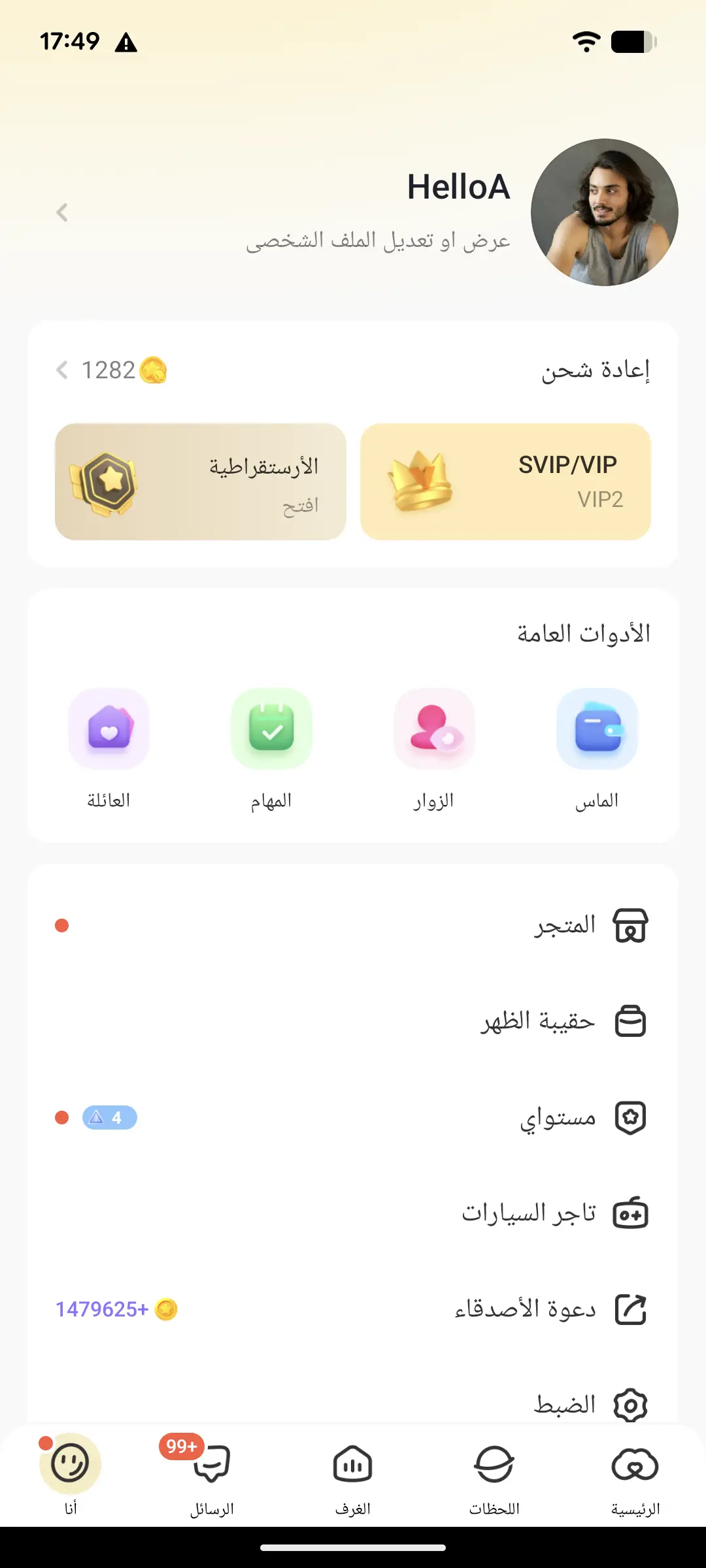
Use Me > Settings > Online Customer Service where available or follow the official SUGO support guide. Include your SUGO ID, device, OS version, app version, time, screenshots, and a concise description. Never send a password or full payment credentials.
Install SUGO on iPhone
- Open the Apple App Store and search for “SUGO-Online Chat Party.”
- Open the product page and confirm App Store ID 1574436604 in the URL.
- Review the current seller, age rating, privacy details, version history, and compatibility shown for your region.
- Select Get or the download icon and authenticate with Apple.
- Open SUGO, choose an available sign-in method, and save the account ID and recovery details.
If the listing says the app is unavailable, confirm the country on your Apple account and the supported iOS version. Changing store regions can affect subscriptions and payment methods, so do not change it solely to follow an unofficial tutorial.
Install SUGO on Android
- Open Google Play and search for “SUGO: Voice Chat Party.”
- Confirm that the page URL contains
id=com.voicemaker.android. - Review the developer contact, data-safety section, age rating, update date, and device compatibility.
- Select Install and let Google Play complete its standard checks.
- Open the app and grant microphone or camera access only when using a related feature.
Stable release, beta build, and APK mirror are different
| Type | Who it is for | Main consideration |
|---|---|---|
| Stable store release | Most users | Distributed through the normal official store channel |
| Official beta | Testers who deliberately enrol | May contain unfinished behavior and require feedback |
| Modified or “MOD” build | No legitimate need | May tamper with payments, credentials, or app behavior |
A version advertised as “newer” is not automatically more stable. Official stores can roll out a release gradually, pause it for a device model, or display regional release notes. Compare the version inside your store rather than treating a mirror’s filename as authoritative.
Troubleshoot common download and update problems
The app is not available in my country
Check the official store page while signed into your normal account. Availability can depend on region, age, local rules, and device. Ask official support whether there is an approved route; do not assume the first APK result is authorized.
My device is incompatible
Review the minimum operating-system requirement and available storage. Install system updates supported by the device. Avoid tools that claim to bypass compatibility because the app may still fail or expose account data.
The update loops or remains pending
Use a stable connection, restart the store, confirm free space, and reboot the phone. On Android, follow Google Play’s supported cache and account troubleshooting. On iPhone, check Apple’s system status and download settings.
I cannot sign in after reinstalling
Use the original sign-in method and verify that you selected the correct country code or linked account. Do not create repeated replacement accounts if purchases or host records belong to the original one. Contact support with the SUGO ID and receipts, without sending a password or one-time code.
Send a support request that can be investigated
Include the device model, operating system, SUGO version, store country, SUGO ID, exact time, network type, error message, and the steps that produced it. Attach a screenshot with private information covered. If the issue involves a payment, include the store order reference and amount, but redact full card details. One precise report is more useful than several messages saying only “it does not work.”
FAQs
Is SUGO free to download?
Yes. The official listings show a free download with optional in-app purchases.
What is the official Android package ID?
com.voicemaker.android .
What is the official iPhone app ID?
The App Store listing uses ID 1574436604.
Should I download an APK if Google Play is unavailable?
Do not assume an unrelated mirror is authorized. Check SUGO’s official download page or contact official support for the route available in your region.
How do I know the latest version number?
Read the current version displayed in your regional store. Version numbers can change after this article is published.
More guides on this topic: Getting Started with Voice Apps and Rooms